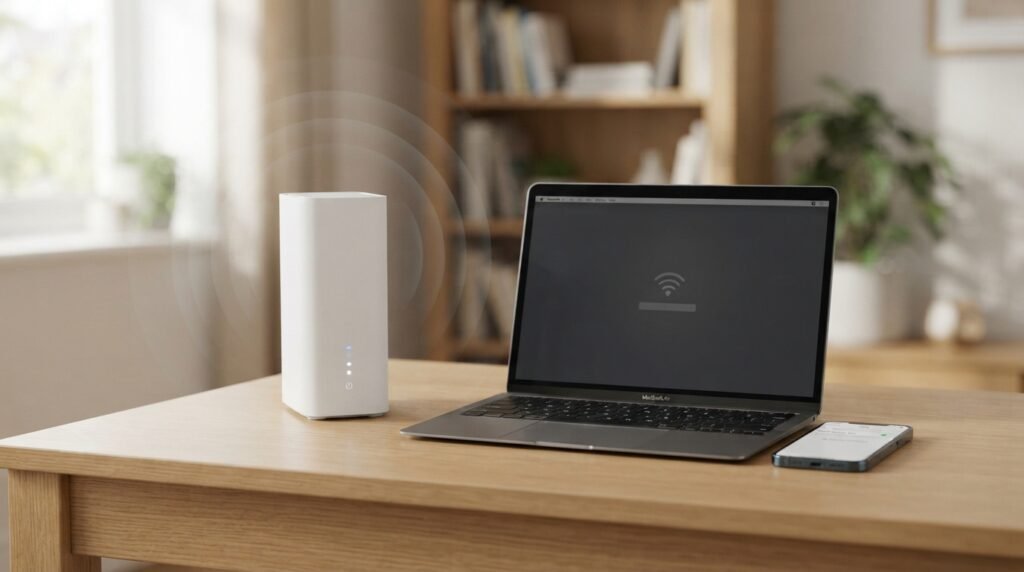
If your Sky Wi-Fi keeps disconnecting, the problem could be your Wi-Fi signal, the device you are using, your Sky Hub, or the broadband connection itself.
Start by checking whether the problem affects one device or every device in your home. Then check for a Sky service problem, restart your Hub and run Sky’s connection checks.
This guide explains what to check and what to do if your Sky Wi-Fi keeps dropping out.
1. Check if Sky has a service problem
Before changing any settings, check whether Sky is reporting a problem in your area.
A service problem can cause your Wi-Fi or broadband connection to stop working or repeatedly disconnect.
Use Sky’s official Service Checker to check your connection.
If Sky reports a problem, there may be nothing wrong with your Wi-Fi settings. You may need to wait until the service issue is resolved.
If no problem is shown, continue with the steps below.
2. Restart your Sky Hub
Restarting the Hub is one of the simplest things to try when your connection keeps dropping.
To restart your Sky Hub:
- Switch the Hub off at the mains.
- Wait for the Hub to power down.
- Leave it off for around 10 seconds.
- Switch it back on.
- Wait several minutes for the broadband connection and Wi-Fi to return.
- Connect your device again and test the connection.
Do not repeatedly switch the Hub off and on if it is carrying out a software update.
Sky says Hub software updates can happen in the background, and the Hub may temporarily be unavailable while an update is being installed.
3. Check whether one device or every device is affected
This is one of the most useful checks you can make.
Try connecting another device to your Sky Wi-Fi.
For example, if your laptop keeps disconnecting, test your:
- phone
- tablet
- smart TV
- games console
- another laptop or computer
If only one device disconnects
The problem may be with that device rather than your Sky broadband connection.
Restart the device and reconnect it to your Wi-Fi.
If the problem continues, forget the Wi-Fi network on that device and connect to it again.
If several devices disconnect
If phones, computers and other devices all lose their connection at roughly the same time, the problem is more likely to involve your Wi-Fi network, Sky Hub or broadband connection.
Continue with the next steps.
4. Check whether your broadband connection is also dropping
There is an important difference between a Wi-Fi problem and a broadband problem.
Your device can lose its Wi-Fi connection even when your broadband service is working normally.
However, if several devices lose internet access at the same time, the broadband connection itself may be dropping.
You can test this by checking different devices when the problem happens.
If possible, also check whether a device connected by Ethernet has lost internet access.
If both Wi-Fi and wired devices lose internet access at the same time, this points more towards the broadband connection or Hub rather than a problem with one device’s Wi-Fi.
5. Restart the device that keeps disconnecting
Phones, laptops, tablets, smart TVs and other devices can sometimes develop temporary connection problems.
Restart the affected device and then reconnect it to your Sky Wi-Fi.
If the device connects normally afterwards, the problem may have been temporary.
If it continues disconnecting while other devices work normally, continue troubleshooting that particular device.
6. Test your Wi-Fi close to the Sky Hub
Wi-Fi signal strength can change significantly depending on where you are in your home.
Walls, furniture and other objects can reduce the strength of a wireless signal.
Move the affected device closer to your Sky Hub and test the connection again.
If Wi-Fi works near the Hub
If the connection is stable close to the Hub but keeps dropping in another room, the problem may be related to Wi-Fi coverage.
This can happen when the signal has to travel through several walls or across a larger property.
Sky also recommends checking Wi-Fi coverage and offers different options for improving coverage depending on the broadband and Wi-Fi products you have.
If Wi-Fi still disconnects beside the Hub
If the device continues disconnecting when it is close to the Hub, distance is less likely to be the main cause.
Continue with the next checks.
7. Check your Sky Hub and cables
Look at your Sky Hub and make sure its cables are properly connected.
Check that:
- the power cable is secure
- the broadband cable is connected properly
- there are no obviously damaged cables
- the Hub has power
- the Hub lights are not showing an unexpected status
The meaning of the lights depends on which Sky Hub you have.
Sky provides separate information for its different Hub models, including the Sky Max Hub, Sky Broadband Hub and Sky Q Hub.
If you are unsure what your Hub lights mean, check Sky’s official Hub light guide.
8. Check your Wi-Fi settings
If you have a Sky Max Hub or Sky Gigafast+ Hub, Sky provides Wi-Fi settings through the My Sky app.
You can use the app to access your broadband and Hub settings.
The exact options available can depend on your Hub and broadband service.
Avoid changing advanced Wi-Fi settings unless you know what the setting does.
If the problem started after changing a Wi-Fi setting, consider whether that change could be related.
9. Check for Wi-Fi interference
Wi-Fi can be affected by the environment around your Hub and devices.
Problems can be more noticeable in certain rooms or at particular times.
Try moving the Hub away from obvious sources of interference and avoid placing it inside a cupboard or behind large objects.
You should also avoid placing it somewhere that blocks the wireless signal unnecessarily.
If the connection is consistently worse in one part of the house, compare the connection close to the Hub with the connection in the problem area.
This can help show whether the problem is related to Wi-Fi coverage.
10. Run Sky’s connection check
If your Sky Wi-Fi keeps disconnecting, use Sky’s official connection tools to check the broadband service.
Sky provides a Service Checker and broadband diagnostic tools.
A connection test can help identify problems with your broadband service that may not be obvious from the Wi-Fi connection alone.
If Sky’s test reports a problem, follow the instructions it provides.
If the test says there is no problem but your connection continues to drop, continue troubleshooting.
11. Check whether the problem happens at a particular time
Take note of when the disconnections happen.
For example, do they happen:
- throughout the day?
- mainly in the evening?
- at night?
- when several people are using the internet?
- when one particular device is being used?
- in one room?
- when streaming video or playing games?
The timing can help you identify a pattern.
For example, if the problem only happens in one room, Wi-Fi coverage may be worth investigating.
If several devices disconnect at the same time, the problem may be more closely related to the Hub or broadband connection.
Why does my Sky Wi-Fi keep disconnecting?
There are several possible reasons why Sky Wi-Fi may keep disconnecting.
Common possibilities include:
- a Sky broadband service problem
- a problem with the Sky Hub
- weak Wi-Fi coverage
- a problem affecting one device
- interference affecting the wireless connection
- a temporary problem with the device
- a broadband connection that is dropping
- problems with a particular Wi-Fi configuration
Sky also explains that slow Wi-Fi and disconnected Wi-Fi are different problems.
Slow Wi-Fi means the connection is still working but performance is poor.
Disconnected Wi-Fi means the device loses its connection altogether.
Identifying which problem you have can make troubleshooting easier.
Why does my Sky Wi-Fi keep disconnecting from one device?
If your Sky Wi-Fi disconnects from one phone, laptop or other device but works normally on other devices, start by troubleshooting that device.
Try:
- Restarting the device.
- Turning Wi-Fi off and back on.
- Forgetting the Sky Wi-Fi network.
- Reconnecting using your Wi-Fi password.
- Checking whether the device has any pending software updates.
- Testing the device close to the Sky Hub.
If other devices remain connected while one device keeps disconnecting, the problem is less likely to be a general Sky broadband outage.
Why does my Sky Wi-Fi keep dropping out in certain rooms?
If your Wi-Fi works well near the Sky Hub but disconnects or becomes unreliable in another room, Wi-Fi coverage may be the problem.
Walls, furniture and the distance between the device and Hub can affect wireless performance.
Try testing the same device in several locations.
If the connection becomes stable when you move closer to the Hub, the problem is likely related to the wireless connection in that part of your home.
Why does my Sky internet keep dropping out?
If the internet stops working on several devices at the same time, the problem may be more than Wi-Fi.
Check Sky’s Service Checker and run its broadband diagnostic tools.
Also check the lights on your Sky Hub.
If a wired device and several Wi-Fi devices all lose internet access at the same time, this can point towards the broadband connection or Hub rather than one device.
What if Sky says there is no outage?
A Service Checker showing no known problem does not necessarily mean that your individual connection is working correctly.
Continue with the basic checks:
- Restart your Sky Hub.
- Check the Hub lights.
- Test another device.
- Test close to the Hub.
- Check whether wired devices are also affected.
- Run Sky’s broadband diagnostic test.
- Keep a note of when the connection drops.
If the problem continues, contact Sky and explain what you have already tested.
Giving Sky clear information about the problem can make it easier to investigate.
When should you contact Sky?
You should consider contacting Sky if your connection continues to disconnect after the basic troubleshooting steps.
This is particularly important if:
- several devices lose internet access
- the connection drops repeatedly
- the Hub shows an unusual light
- Sky’s diagnostic tool reports a fault
- a wired connection also loses internet access
- the problem continues after restarting the Hub
- the problem keeps returning over several days
Before contacting Sky, make a note of what happens.
For example:
“Several devices lose internet access at the same time. Restarting the Hub fixes it temporarily, but the connection drops again later.”
That is more useful than simply saying that the Wi-Fi is slow.
Sky Wi-Fi keeps disconnecting: what to do first
If you only have a few minutes, start with these checks:
- Check Sky’s Service Checker.
- Restart your Sky Hub.
- Test another device.
- Test the affected device close to the Hub.
- Check the Hub lights and cables.
- Run Sky’s broadband diagnostic test.
- Contact Sky if the problem continues.
These checks can help you work out whether the problem is with one device, your Wi-Fi network, your Hub or the broadband connection.
Related Sky guides
If your problem is slightly different, these guides may help:
- Sky Wi-Fi Not Working
- Sky Slow Wi-Fi
- Sky Hub Lights: Meanings & Troubleshooting
- Sky Broadband Outages & Service Problems
- Sky Hub Restart & Reset Guide
Add internal links to these articles once they are published on TelecomHub.
About TelecomHub
TelecomHub is an independent UK website providing practical guides for common broadband, Wi-Fi and mobile connectivity problems.
TelecomHub is not affiliated with, operated by or officially supported by Sky.
Provider names and trademarks belong to their respective owners.
Sources and verification
Provider-specific information in this guide has been checked against Sky’s current help and support information.
Useful official Sky sources include:
- Sky Help — Why does my WiFi keep disconnecting?
- Sky Help — Sky Hub and booster software
- Sky Help — Lights on your Sky Hub explained
- Sky Help — Change your WiFi settings for Sky Max or Gigafast+ Hub
- Sky Help — Sky Broadband and Wi-Fi support
- Sky Service Checker
Information from Sky Community discussions should be treated as community experience rather than official Sky guidance.
Last reviewed: September 2026