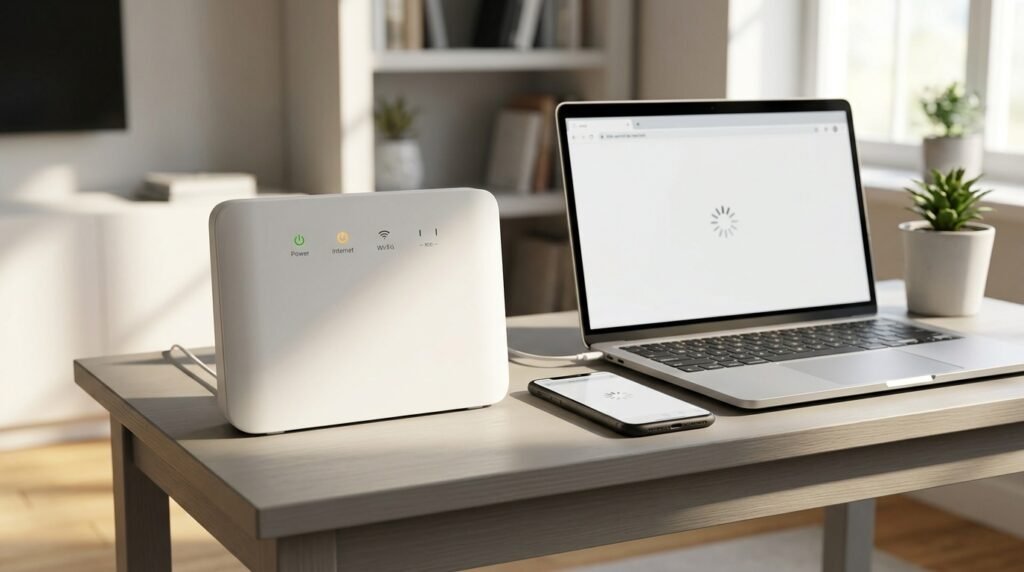
If your Sky Wi-Fi is connected but there is no internet, your phone, laptop or other device has successfully connected to your Sky Hub, but it cannot access websites, apps or other internet services.
You may see messages such as “no internet but Wi-Fi is connected,” “Wi-Fi says connected but no internet access,” or “Wi-Fi is on but no internet connection.”
The important thing is to distinguish a Wi-Fi connection problem from an internet connection problem. If your device is already connected to Wi-Fi, repeatedly changing Wi-Fi settings may not fix the underlying issue.
The quickest way to narrow it down is to check another device, check Sky’s service status, then check and restart your Sky Hub.
Quick Fix
Quick Fix: Check whether another device can access the internet first. Then check Sky’s Service Checker and restart your Sky Hub. If several devices are connected to Wi-Fi but none can access the internet, the problem may be with the Hub, broadband connection or a wider service issue. If only one device is affected, focus on that device before changing settings on the Hub.
What Does “Wi-Fi Connected but No Internet” Mean?
Your device and Sky Hub are communicating with each other, but the Hub may not currently have a working connection to the internet.
There are therefore two different parts to the connection:
- Wi-Fi connection — your phone, laptop or tablet connects to the Sky Hub.
- Internet connection — the Sky Hub connects your home network to the wider internet.
This means it is possible for a device to show Wi-Fi connected but no internet.
For example, your laptop might remain connected to your home Wi-Fi while websites fail to load.
That is different from a situation where the laptop cannot connect to the Wi-Fi network at all.
1. Check Whether One Device or Several Devices Are Affected
This is the most useful first test.
If your laptop says Wi-Fi is connected but there is no internet connection, try another phone, tablet or computer connected to the same Sky Wi-Fi.
If another device can access the internet
If your phone can browse normally but your laptop cannot, the Sky broadband connection is less likely to be the main problem.
The issue may be specific to the affected device.
If several devices cannot access the internet
If multiple devices remain connected to Wi-Fi but none can browse, investigate the Sky Hub, broadband connection and service status.
This distinction prevents you from spending time changing settings on one device when the problem may affect the whole connection.
2. Try More Than One Website or App
Before assuming your Sky internet connection is down, try several different websites or apps.
For example, try opening:
- a familiar website
- another unrelated website
- an app you normally use
If only one website or service fails, the problem may be with that particular service.
If internet access does not work across several websites and apps, continue with the checks below.
A single failed website is not enough to establish that your Sky broadband connection has stopped working.
3. Check Sky’s Service Checker
If your Sky Wi-Fi is connected but no internet is available, check Sky’s Service Checker.
Sky’s Service Checker can show information about known service problems and can provide troubleshooting information for your connection.
If Sky is reporting a service issue, follow the instructions shown there rather than repeatedly changing settings on your phone or laptop.
What if Sky reports no known problem?
A Service Checker result showing no known issue does not necessarily prove that your individual connection has no fault.
A problem affecting one connection may not be reported as a wider outage.
If your Wi-Fi says connected but no internet access is still occurring, continue with the Hub and device checks.
4. Check Your Sky Hub
Look at your Sky Hub and make sure it has power and appears to be operating normally.
If the Hub has lost its broadband connection, your devices may still remain connected to the local Wi-Fi network even though internet access is unavailable.
This can create the confusing situation where your wireless network is connected but there is no internet.
Sky Hub models can differ, so don’t assume that a particular light colour has exactly the same meaning on every model.
For model-specific information, use Sky’s official guidance:
5. Restart Your Sky Hub
If there is no known service problem, restarting the Sky Hub is a sensible next step.
A temporary problem with the Hub or broadband connection can sometimes be resolved by restarting the equipment.
Turn the Hub off using its power control, wait briefly, and turn it back on.
Then allow time for the Hub to reconnect before testing your devices again.
Don’t assume that the internet will return immediately. Give the Hub time to complete its startup and reconnect to the broadband service.
Once it has settled, test more than one website.
6. Test the Same Device Again
After restarting the Sky Hub, test the device that originally showed “no internet but Wi-Fi is connected.”
Try several websites or apps.
If everything works again, the problem may have been temporary.
If the device still cannot access the internet, compare its behaviour with another device.
This comparison is more useful than repeatedly restarting the same device without checking whether other devices have the same problem.
7. Check Whether the Problem Is Your Device
If other devices can access the internet normally but one device cannot, focus on that device.
For example, if your phone works but your laptop shows Wi-Fi connected but no internet, the problem may be specific to the laptop.
Check whether:
- the device can access other websites or apps
- the problem occurs in more than one browser or app
- a VPN is active
- restarting the device changes the result
- the device works normally on another network
If only one device is affected, there is usually no reason to factory reset the Sky Hub simply because that device cannot browse.
The evidence points more towards the individual device or its connection.
8. Check Whether Your Sky Broadband Connection Is the Problem
If several devices are connected to your Sky Wi-Fi but none can access the internet, look beyond the individual devices.
This is where the difference between Wi-Fi and broadband becomes important.
Your devices can communicate with the Sky Hub over Wi-Fi while the Hub is unable to provide working internet access.
In other words, your Wi-Fi is on but there is no internet connection.
Check:
- whether multiple devices are affected
- whether the Hub appears to have a connection problem
- whether Sky’s Service Checker reports an issue
- whether restarting the Hub changes the result
Sky also provides official broadband troubleshooting guidance:
9. Test Ethernet If You Have a Cable
If you have a suitable Ethernet cable and a device with an Ethernet port, a wired connection can provide another useful diagnostic test.
Connect the device directly to the Sky Hub and try several websites.
If Ethernet works
If the wired connection provides internet access while the Wi-Fi-connected device does not, the problem may be related to the wireless connection or the affected device.
If Ethernet also does not work
If the wired connection also has no internet access, the issue is less likely to be limited to Wi-Fi on one device.
It may instead involve the Sky Hub, broadband connection or a wider service problem.
Ethernet does not prove the exact cause by itself, but it helps separate a wireless/device problem from a broader connection problem.
10. What If Sky’s Service Checker Shows No Problem?
You can still have an individual connection problem even when Sky is not reporting a wider service issue.
If your Sky Wi-Fi says connected but no internet and the Service Checker shows no known problem, work through the basic diagnostic checks:
- Test another device.
- Check the Sky Hub.
- Restart the Hub.
- Test several websites and apps.
- Try Ethernet if available.
- Check whether the problem returns.
Pay particular attention to whether all devices are affected.
If only one device cannot access the internet, investigate that device.
If several devices cannot access the internet, the issue is more likely to involve the Hub, broadband connection or service.
11. Check Whether the Problem Keeps Coming Back
A connection that fails once is different from one that repeatedly stops working.
If your devices repeatedly show Wi-Fi connected but no internet, make a note of what happens when the problem occurs.
Record:
- when the problem starts
- how many devices are affected
- whether restarting the Hub restores internet access
- whether the problem returns later
- whether Ethernet works
- whether Sky reports a service issue
For example, if restarting the Hub restores internet access but the same problem returns later, tell Sky that the connection is repeatedly dropping rather than simply saying that the internet is not working.
This can make further troubleshooting more useful.
12. Don’t Factory Reset Your Sky Hub Yet
A factory reset should not be your first response to Wi-Fi connected but no internet.
A reset changes the Hub’s configuration and may create additional setup work without solving the underlying broadband problem.
Start with the simpler checks:
- test another device
- check Sky’s Service Checker
- check the Hub
- restart the Hub
- test the connection again
- use Ethernet as a diagnostic comparison if available
If the problem continues, use Sky’s official troubleshooting information or seek further assistance from Sky.
What the Results Tell You
The pattern of the problem can help you decide what to investigate next.
| What you see | What it may indicate |
|---|---|
| Only one device cannot access the internet | Device-specific problem |
| Several devices cannot access the internet | Hub, broadband or service problem |
| Devices cannot connect to Wi-Fi at all | Wi-Fi connection problem |
| Devices connect to Wi-Fi but websites fail | Internet/broadband connection problem |
| Ethernet works but Wi-Fi does not | Wireless or device-specific issue |
| Restarting the Hub restores access temporarily | Possible temporary or recurring Hub/broadband issue |
These are diagnostic clues, not definitive proof of the cause.
When Should You Contact Sky?
Consider getting further help from Sky if:
- several devices cannot access the internet
- restarting the Hub does not resolve the problem
- the problem repeatedly returns
- Ethernet also has no internet access
- the Hub continues to show a connection problem
- Sky’s troubleshooting does not restore the connection
- the problem continues despite no reported wider outage
When explaining the problem, give Sky the results of the checks you have already completed.
For example:
“Several devices connect to my Sky Wi-Fi, but none can access the internet. I checked the Service Checker, restarted the Hub and tested another device, but the problem remains.”
That gives support more useful information than simply reporting that the Wi-Fi is not working.
Frequently Asked Questions
Why is my Wi-Fi connected but there is no internet?
Your device may be connected successfully to your Sky Hub while the Hub itself has no working connection to the internet.
Check another device, Sky’s Service Checker and the Hub to narrow down the problem.
Why does my Sky Wi-Fi say connected but no internet?
Your device has joined the Sky Wi-Fi network, but it cannot currently reach the internet.
If several devices have the same problem, check the Sky Hub and broadband connection rather than focusing only on one device.
Why is there no internet but Wi-Fi is connected?
Wi-Fi and internet access are separate parts of your connection.
Your device can communicate with the Sky Hub even when the Hub cannot currently provide access to the internet.
Why does my Wi-Fi say connected but no internet access on my phone?
If your phone is the only device affected, the problem may be specific to the phone.
Test another device on the same Sky Wi-Fi. If other devices work, investigate the affected phone rather than immediately changing the Hub.
What should I do when Wi-Fi is on but there is no internet connection?
First check another device.
Then check Sky’s Service Checker, inspect the Hub and restart it. If multiple devices still cannot access the internet, investigate the broadband connection or contact Sky.
What if my wireless network is connected but there is no internet?
Check whether another device can browse.
If no devices can access the internet, check the Sky Hub, service status and broadband connection.
If other devices work normally, focus on the device showing the problem.
Can I have Wi-Fi without internet?
Yes.
Your device can remain connected to your local wireless network even when the Sky Hub cannot reach the wider internet.
That is why a device can display Wi-Fi connected but no internet.
Should I reset my Sky Hub if there is no internet?
A normal restart is a reasonable troubleshooting step.
A factory reset is more disruptive and should not normally be the first step. Check the service status and connection first.
Related Sky Guides
If your symptoms are different from Wi-Fi connected but no internet, these guides cover the next most relevant problem:
- Sky broadband problems: what to check when your connection is down — Use this when multiple devices cannot get online and you suspect the wider broadband connection.
- Sky Wi-Fi not working: checks for devices that cannot connect — Use this when a device cannot properly join your Sky Wi-Fi network.
- Sky Wi-Fi keeps disconnecting: find out why your connection drops — Use this when the device connects successfully but repeatedly loses its Wi-Fi connection.
- Check for a Sky broadband outage in your area — Use this when several devices lose internet access at the same time and you want to check for a known service problem.
- Sky Hub lights explained: identify what your Hub is showing — Use this when you need to understand the status lights on your Sky Hub.
- How to restart or reset your Sky Hub safely — Use this when you need step-by-step instructions for restarting the Hub or understanding when a reset may be appropriate.
About TelecomHub
TelecomHub provides independent UK broadband, Wi-Fi and mobile troubleshooting guides.
We are not Sky or O2 and are not affiliated with either provider.
Provider-specific information is checked against official sources where possible, while troubleshooting explanations are written to help readers identify the likely area of a problem without assuming a particular cause.
Sources and Verification
Sky-specific information in this guide was checked against Sky’s official help information, including its Service Checker, Hub-light guidance and broadband troubleshooting information.
Sky Hub models and available features can vary, so readers should use the instructions and information shown for their specific Hub.
Last verified: September 2026